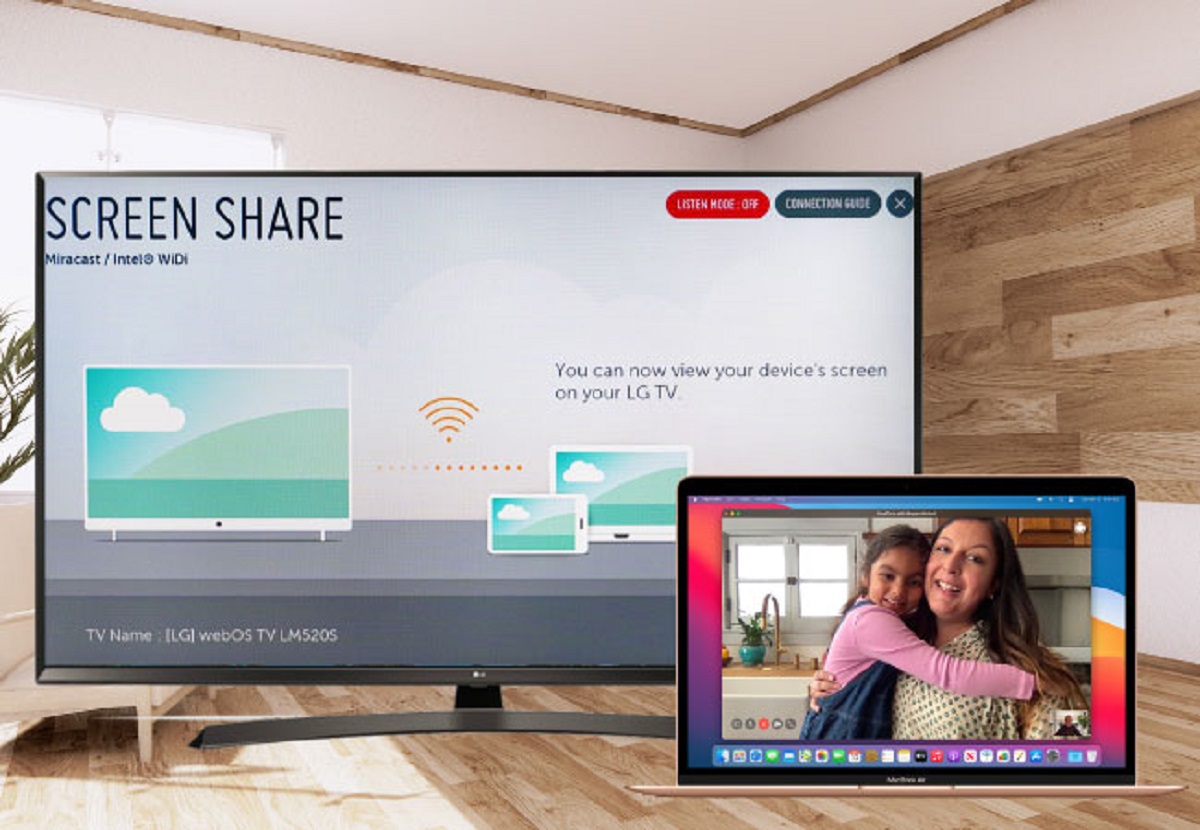
First up: AirPlay. Apple’s own magic trick for beaming your screen to an Apple TV or a smart TV. If you have an Apple TV, congratulations—you’re basically a wizard now. Just click the AirPlay icon in your menu bar, pick your TV, and poof—your screen appears on the big screen.
But what if your TV isn’t an Apple product? No worries, my friend. Many modern smart TVs (Samsung, LG, Sony, etc.) support AirPlay 2. It’s like finding out your toaster also makes coffee. Check your TV’s settings; it might be hiding under “Screen Mirroring” or “AirPlay.”
The catch? Wi-Fi. Your Mac and TV need to be on the same network. If your router is a grumpy old potato, expect lag, stuttering, or a digital shrug. Want to avoid that? Read on, you impatient soul.
When wireless fails: the cable savior
Let’s be real: sometimes the Wi-Fi gods hate you. That’s when you grab a cable. Yes, the ancient technology your grandpa used. For most modern MacBooks, you’ll need a USB-C to HDMI adapter—or a direct USB-C to HDMI cable if you’re feeling fancy.
Plug, click, done. No passwords, no buffering, no tears. Your TV becomes a giant, reliable second monitor. Perfect for scrolling Instagram in 4K or actually working without your laptop’s fan screaming like a jet engine.
Pro tip: if your Mac has an older MagSafe or Thunderbolt port, you might need a different adapter. Check your ports before you panic-buy the wrong one. You’re welcome.