First, let’s get the basics down. Imagine you’ve got a column of numbers—maybe your coffee expenses for the month, or scores from your weekly trivia night. To find their average, you don’t need to break out a calculator and add them up by hand. Seriously, you don’t.
Here’s the simple move: click on an empty cell right below your numbers. Then, head to the Home tab on the ribbon, look for the little Greek letter sigma (∑)—that’s your friend. Click the drop-down arrow next to it and choose Average.
Excel will instantly highlight the column and pop a formula into your cell. Just press Enter, and boom! The average appears like a tiny, perfect gift. It’s so fast you might feel the need to clap.
When You Want to Be a Control Freak (In a Good Way)
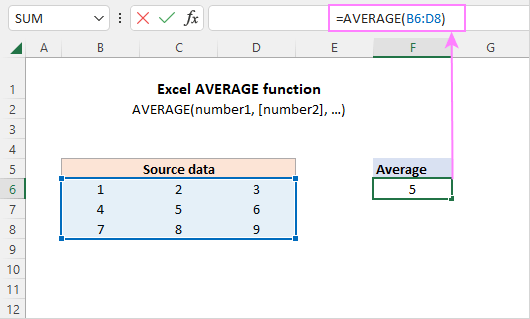
Okay, what if you’re the type who likes to own every formula? I get it—some of us want to build things from scratch. Type =AVERAGE( into any empty cell, then click and drag your mouse over the column of numbers you want to average.
Close the parenthesis with a ) and hit Enter. Voilà! It feels like casting a tiny spell. The AVERAGE function is the master key: it ignores empty cells, handles hidden numbers, and never judges you for having a typo in row 47.
Pro tip: if your data isn’t in one neat column, just type the range like =AVERAGE(B2:B17). See? You’re already speaking Excel’s secret language.

