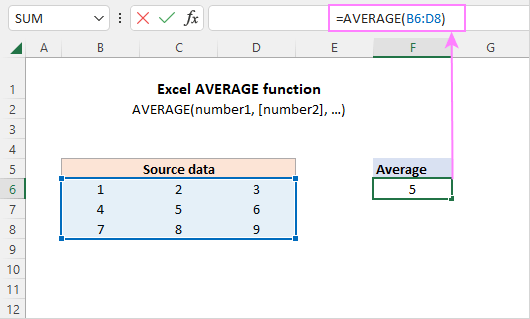
If you see #DIV/0!, it means you tried to average zero numbers. Check your range—you might have selected empty cells. Fix it, and the error disappears like your dignity after a bad karaoke night.
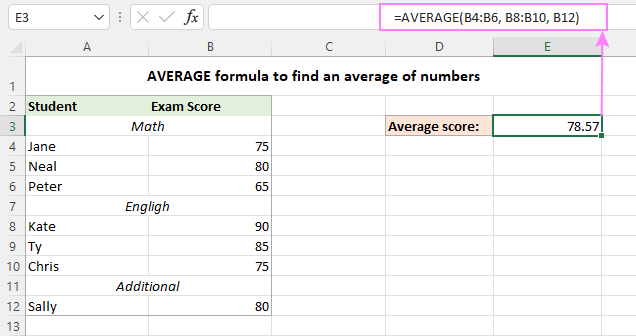 Simple Average Formula
If you see #VALUE!, you probably have text or errors in your range. Excel is saying, “I can’t do this, friend.” Clean up your data, or use AVERAGEA if you’re feeling rebellious.
And if you get a number that looks wrong? Double-check that you didn’t accidentally include a cell with a typo. Trust, but verify—the Excel motto.
Final Pro Tips (Because You Deserve It)
Always format your result as a number with two decimals. Right-click the cell, go to Format Cells > Number > choose 2 decimal places. This makes your output look professional, like you actually know what you’re doing.
Use the Status Bar trick: If you just select a bunch of numbers, look at the bottom right of Excel. It shows the average, sum, and count instantly. No formulas needed. It’s the ultimate cheat code for lazy people.
And remember: The average is just one number. It doesn’t tell the whole story. Be kind to outliers, and never let a bad average ruin your day. Sometimes, you’re an outlier too, and that’s a beautiful thing.
So go forth and average! Whether you’re calculating grades, budgets, or how many times you’ve hit snooze this week, Excel has your back. You’re now equipped with the power to summarize data like a pro, with a smile on your face and a skip in your step.
Remember: Every Excel expert started exactly where you are now—staring at a screen, hoping for the best. You’ve just taken a huge leap. You’ve got this. Now go make that spreadsheet your brilliant, average-crunching playground. High five! ✋

