On a Mac, open System Settings (the gear icon from the Apple menu), then click “General” in the sidebar—it’s usually the second option. Look for “Language & Region”—it has a little globe icon next to it. Click that, and you’ll see a list of “Preferred Languages.”
Click the plus sign (+) button below the list, then choose “English.” A dialogue box will pop up asking if you want to “Use English as the primary language.” Click “Use English.” The Mac will immediately restart some apps—but you won’t lose any work. It’s almost too smooth.
 Language Setting
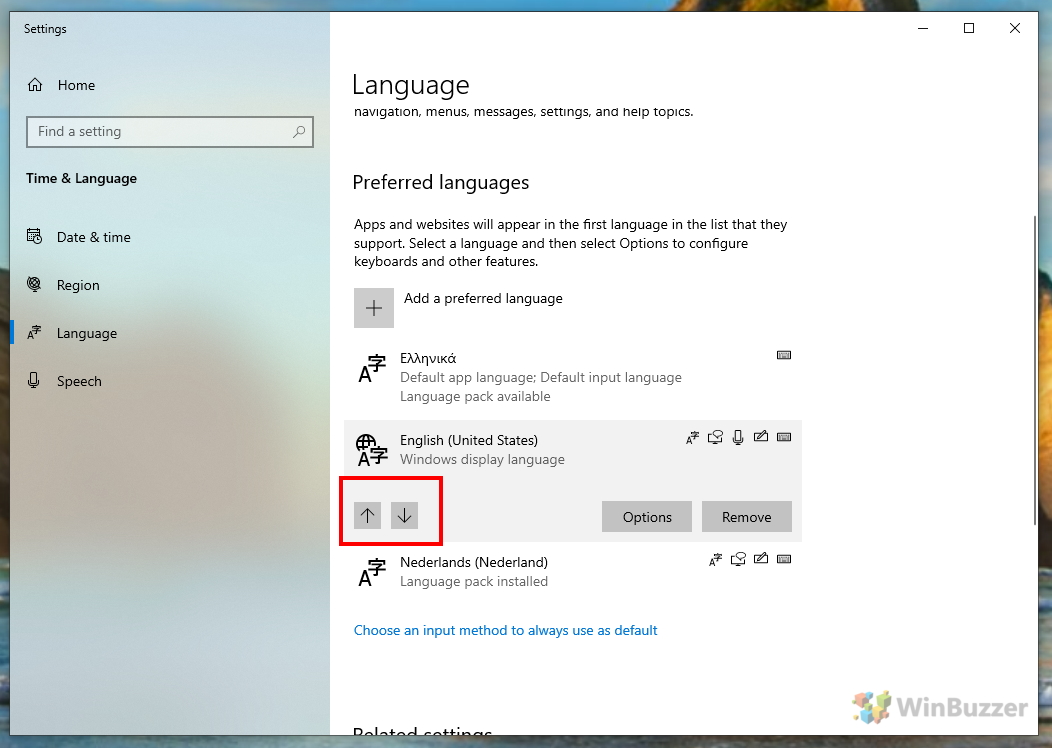
If the gibberish is still there, drag “English” to the top of the list. macOS respects hierarchy—first language in the list wins. Then, find the old language (like “Chinese” or “Finnish”) and click the minus sign (-) to remove it. Boom. Your laptop now understands you.
What if you can’t even see the gear icon? (The blindfold test)
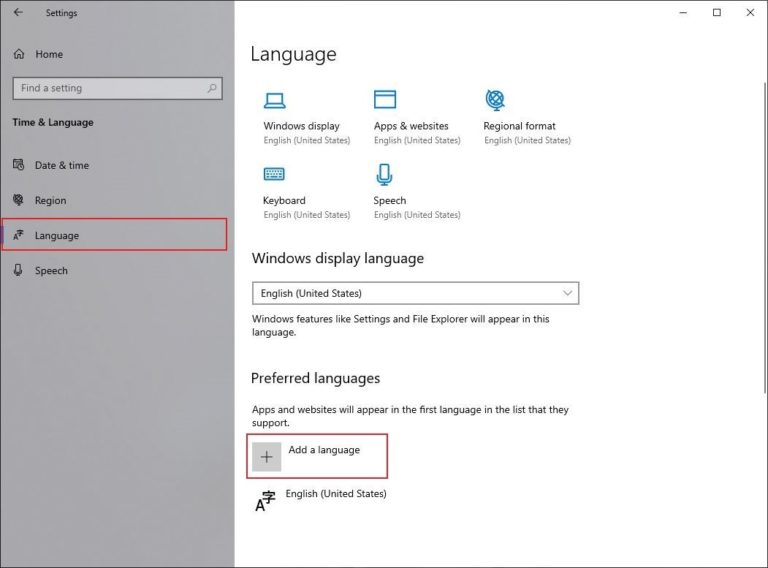
Sometimes the screen is so scrambled you can’t find anything. Don’t panic—there’s a keyboard shortcut. On Windows, press the Windows key (the flag icon) and type “control.” Press Enter. That opens the old Control Panel (still in the unknown language, but with familiar layouts). Look for “Clock and Region” (a clock icon), then “Region,” then the “Administrative” tab, then “Copy settings.” It’s a mouthful, but once you’re there, check the box that says “Welcome screen and system accounts.” That forces the language change for everyone.
On a Mac, press Command + Space to open Spotlight Search. Type “Language & Region” (even if the system doesn’t recognize it, it might show the correct setting). Or just hit Command + Shift + G in Finder, type “/System/Library/CoreServices/” and look for “Language & Region.prefPane.” That’s the nuclear option—but it works.
Side note: if you’re still lost after all this, just call your tech-savvy friend. Bribe them with pizza. They’ll have it fixed before the delivery arrives.